 Guide
Guide 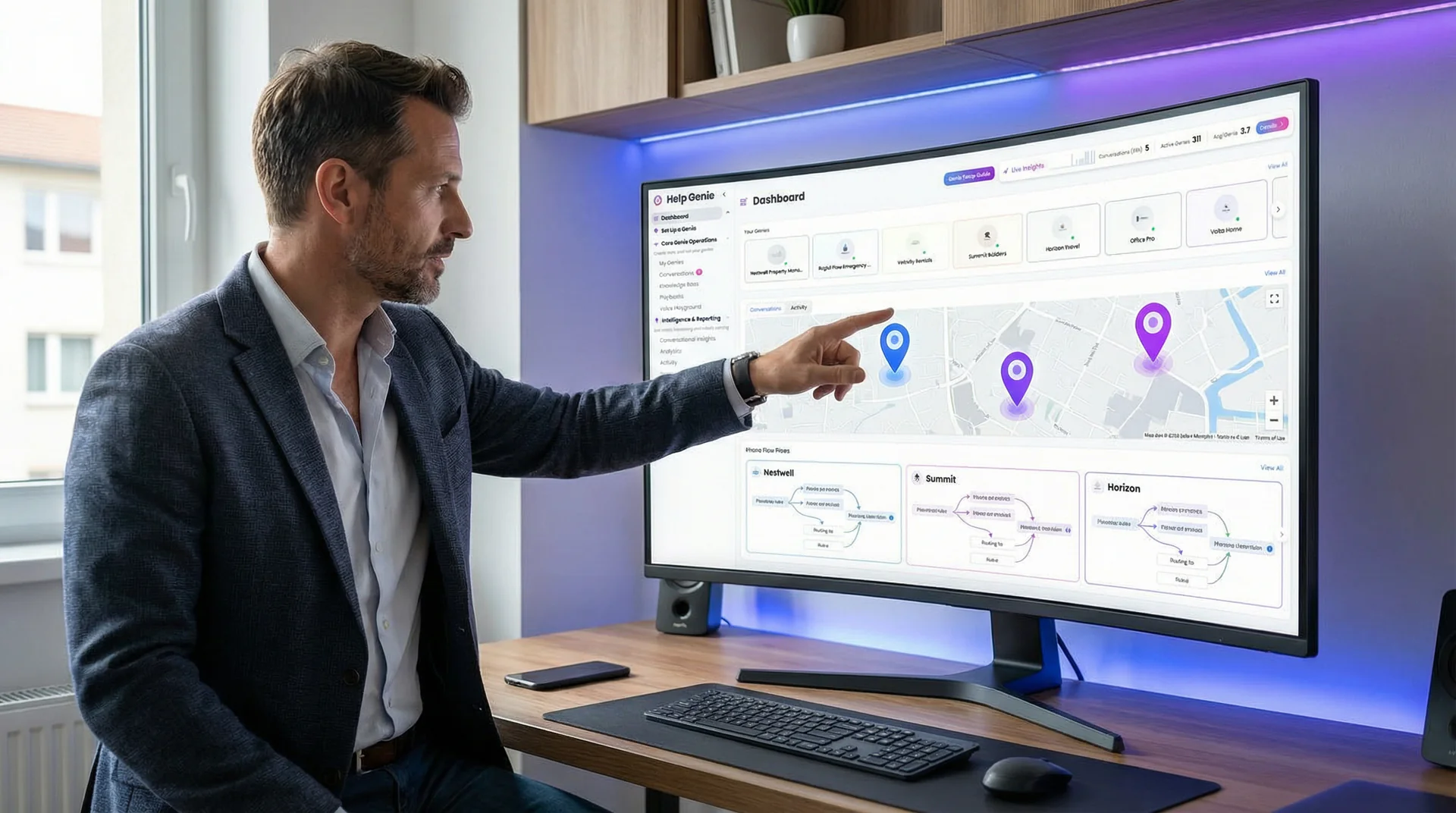
What you’ll learn in this guide:
- How to structure voice genies across multiple business locations
- Setting up area-code-based and time-zone-based call routing
- Configuring location-specific knowledge bases so each genie knows its own property
- Building overflow and failover rules between locations
- Managing all locations from a single dashboard
Prerequisites
This guide assumes you already have:
- A Help Genie account with at least one active voice genie
- Two or more business locations that receive phone calls
- Basic familiarity with your current phone system or VoIP provider
- Access to your phone system’s forwarding or routing settings
If you haven’t set up your first voice genie yet, start with our beginner setup guide for trades or real estate and come back here when you’re ready to scale.
You opened a second location. Then a third. Each one has its own phone number, its own staff, its own hours, and its own version of “How do we handle calls when everyone’s busy?” Multiply every phone problem you had at one location by three and that’s where you are now.
Multi-location call routing with AI voice genies solves this by giving each location its own trained genie while letting you manage everything from one dashboard. Callers always reach someone who knows their location’s specifics. No more “Let me transfer you” loops. No more callers being told the wrong hours for the wrong location.
This guide covers the setup for businesses with 2-10 locations. Whether you run auto dealerships in three cities, real estate offices across a metro area, or hotel properties in different states, the routing logic is the same.
Multi-Location Routing Architecture
Step 1: Plan Your Location Structure
Before touching any settings, map out how your locations relate to each other and how callers should flow between them. This planning prevents rework later.
What to do:
- List every location with its phone number, address, hours, and time zone
- Decide if each location gets its own voice genie or if some locations share one
- Identify your “hub” location (the one that handles overflow for others)
- Map out which scenarios require cross-location transfers
- Document any location-specific services (not every location offers the same things)
Decision framework:
| Scenario | Recommended Setup |
|---|---|
| 2-3 locations, same metro area, same hours | One genie per location, shared overflow |
| 3+ locations, different time zones | One genie per location, time-based overflow chain |
| Locations with different services | Dedicated genie per location, no sharing |
| Central booking number + individual locations | Hub genie routes to location genies |
What success looks like: You have a clear diagram showing each location, its genie, and how calls flow between them.
Help Genie Tip: If your locations span time zones, the location that closes latest should be the final overflow destination. A caller from California reaching your New York voice genie at 10 PM Eastern still gets a great experience because it’s only 7 PM Pacific.
Step 2: Create a Voice Genie for Each Location
Each location needs its own voice genie with its own identity. Even if your locations share a brand, callers expect location-specific answers.
What to do:
- From your dashboard, click “Add Genie” for each location
- Name each genie clearly: “[Brand] - [Location Name]” (e.g., “Peak Auto - Downtown” or “Crestview Hotel - Beach Property”)
- Customize the greeting for each location to include the specific location name
- Set each genie’s primary language if locations serve different language markets
- Choose a voice profile that matches each location’s personality (a beachfront resort might sound different from a downtown business hotel)
Why this matters: A caller dialing your Westside office number should hear “Thanks for calling [Brand] Westside” not a generic company greeting. Location-specific identity builds trust immediately.
What success looks like: Each location has its own named genie in your dashboard. Greetings are location-specific.
Step 3: Train Each Location’s Knowledge Base Separately
This is the most time-intensive step but also the most important. Each voice genie needs to know its own location’s specifics while also understanding the broader business.
What to do:
- For each location genie, open its Knowledge Base
- Add location-specific information:
- Address and directions from major landmarks
- That location’s hours (which may differ from other locations)
- Services and products available at that specific location
- Staff names and roles
- Parking information
- Local area details
- Add shared company information to every genie:
- Company policies
- Pricing that’s consistent across locations
- Brand story and values
- Website and social media
- Test each genie independently with location-specific questions
Common mistake to avoid: Copying the same knowledge base across all locations. If your Downtown location has valet parking but your Suburban location has a free lot, they need different answers to “Where do I park?”
What success looks like: Ask each location’s genie “What are your hours?” and “How do I get there?” and get different, accurate answers for each.
Knowledge Base Structure
Step 4: Set Up Area-Code-Based Routing
If your locations serve different geographic areas, area code routing sends callers to the right location genie automatically based on their phone number.
What to do:
- Go to “Call Routing” in your dashboard
- Open the “Geographic Routing” section
- Map area codes to locations:
- Area codes 212, 646, 917 route to your New York genie
- Area codes 310, 323, 818 route to your Los Angeles genie
- Unknown or out-of-area codes route to your hub location
- For businesses using a single toll-free number: set up an IVR menu (“Press 1 for Downtown, Press 2 for Westside”) that routes to the correct location genie
- Test with phone numbers from different area codes
Why this matters: A caller from a local area code gets routed to the nearest location without having to navigate a menu or explain which location they want. It just works.
What success looks like: Call from a number with a mapped area code. The correct location’s genie answers with its specific greeting.
Step 5: Configure Time-Zone-Aware Routing
When your locations span time zones, call routing needs to be smarter than simple on/off schedules. Your East Coast location might be closed while your West Coast location is still open.
What to do:
- In “Call Routing,” open the “Time Zone Rules” section
- Set each location’s hours in its local time zone
- Configure the routing cascade:
- During local business hours: calls go to that location’s genie
- After local hours but another location is still open: calls forward to the open location’s genie (with a brief “I’m connecting you with our [Location] team” message)
- All locations closed: calls go to after-hours mode with the nearest location’s genie capturing the message
- Account for holidays: create a holiday schedule for each location (they may observe different holidays)
Routing cascade example for three time zones:
| Caller’s Local Time | EST Location | CST Location | PST Location | Who Answers |
|---|---|---|---|---|
| 9 AM EST | Open | Not yet open | Not yet open | EST genie |
| 6 PM EST | Closed | Still open | Still open | CST genie |
| 9 PM EST | Closed | Closed | Still open | PST genie |
| 11 PM EST | Closed | Closed | Closed | After-hours genie |
What success looks like: Calls always reach an active genie during at least one location’s business hours, and the caller experience is seamless regardless of which location answers.
Help Genie Tip: When a call overflows from one location’s genie to another, the receiving genie should acknowledge it. “Thanks for calling. Our [City] office has closed for the evening, but I can help you from our [Other City] location.” Transparency builds trust.
Step 6: Build Overflow and Failover Rules
Even the best routing breaks sometimes. Failover rules make sure no call ever hits a dead end.
What to do:
- In “Call Routing,” open the “Overflow” section
- Set the overflow chain: if Location A’s genie is at capacity (rare but possible during high volume), route to Location B’s genie
- Configure failover: if a technical issue prevents any genie from answering, route to a backup phone number (your cell phone or answering service)
- Set up “unknown location” handling: when the system can’t determine which location a caller wants, route to your hub genie which can ask “Which of our locations are you trying to reach?”
- Enable alerts: get notified immediately if any location’s genie goes offline or if failover activates
Priority routing for VIP callers: If your business has high-value accounts or repeat customers, set up priority routing rules. Known numbers from your CRM can skip the queue and route directly to a specific genie or to a human line.
What success looks like: Simulate a failure scenario by temporarily disabling one location’s genie. Calls to that location should seamlessly route to the next location in the overflow chain.
Step 7: Test Everything and Go Live
Multi-location routing has more moving parts than a single-location setup. Thorough testing prevents embarrassing failures.
What to do:
- Create a test matrix: every location x every time scenario x every caller origin
- Test each location’s genie independently first
- Test area code routing with phones from different areas
- Test time zone transitions by calling at the boundary of each location’s hours
- Test overflow by temporarily setting one genie to “maintenance mode”
- Test failover by temporarily disabling a genie entirely
- Have someone unfamiliar with the system make test calls (fresh perspective catches issues you’ll miss)
- Document any issues, fix them, and re-test
Test matrix template:
| Test | Expected Result | Pass/Fail |
|---|---|---|
| Call Location A during hours | Location A genie answers | |
| Call Location A after hours, Location B open | Location B genie answers with acknowledgment | |
| Call from Location A area code | Routed to Location A genie | |
| Call from unknown area code | Hub genie answers and asks | |
| All locations closed | After-hours genie captures info | |
| Location A genie disabled | Overflow to Location B |
What success looks like: Every cell in your test matrix shows “Pass.” No call scenario results in silence, a busy signal, or a confused caller.
Launch Sequence
Troubleshooting Common Issues
Callers keep reaching the wrong location Check your area code mapping. If many of your callers use mobile numbers with area codes from other regions, area code routing alone won’t work well. Consider adding an IVR prompt (“Which location are you calling?”) as the first step.
Time zone transitions feel abrupt Add a brief transition message when calls overflow between locations. “Our [City] office is closed for the evening, but I can help you with anything you need” takes two seconds and eliminates confusion.
One location’s knowledge base is polluting another’s Make sure shared knowledge is truly shared (company policies, brand info) and location-specific knowledge is only in that location’s genie. Review each genie’s knowledge base independently.
Dashboard is hard to manage with many locations Use Help Genie’s location grouping feature to organize your dashboard. Group genies by region, brand, or function so you can monitor what matters most.
Staff at one location are getting notifications for another Check your notification routing in each genie’s settings. Each location should have its own notification recipients. Use the team management features to assign staff to specific locations.
What to Do After Launch
Already running a single-location setup? Upgrade to multi-location routing with Help Genie and manage every location from one dashboard.
Week 1: Go live one location at a time, starting with your lowest-volume location. Monitor call quality for 24-48 hours before activating the next location.
Week 2: Review cross-location routing analytics. Are callers being routed correctly? How many calls overflow between locations? Where are the gaps?
Month 1: Analyze which locations generate the most AI-handled calls and which have the most escalations. Locations with high escalation rates might need more knowledge base training.
Ongoing: When you add a new location, clone an existing location’s genie as a starting point and customize it. This saves significant setup time compared to starting from scratch.
For industry-specific multi-location setups, explore guides for automotive dealerships, property management, or hotel chains. You can also learn more about AI phone handling for auto dealerships which covers multi-location scenarios.
Ready to unify your multi-location phone experience? Get started with Help Genie and give every location the same professional, AI-powered call handling.
Keep exploring
Further reading and useful tools
How to Integrate Help Genie with Your Phone System
Step-by-step guide to connecting Help Genie with your existing phone system. Covers VoIP, landlines, PBX, and cloud phone setups for any business.
GuideHow to Launch Faster with Help Genie Marketplace Templates
Skip the blank-slate setup. Browse the Help Genie Marketplace for pre-built voice genie templates, clone one for your industry, and customize it in minutes.
Industry InsightsHow to Benchmark the Cost of Missed Calls in 2026
A transparent method for calculating missed-call exposure from your own phone logs, conversion rate, and gross profit.
ComparisonHelp Genie Mail vs Shared Inbox and Help Desk Tools (2026)
A plain shared inbox, a ticketing help desk with an AI add-on, or Help Genie Mail. An honest look at which one fits a product business support inbox.
ComparisonAI Follow-Up Calls vs Email Surveys vs Staff Call-Backs (2026)
Three honest ways to check in with customers after a sale, install or service visit, compared on reach, staff time, consistency and compliance.
Use CaseWhere Is My Order? A Genie That Checks Order Status Mid-Call
Parts suppliers field endless where is my order calls. See a genie check status live with Help Genie Sync, then log the call to your CRM and alert Slack.

Help Genie
The Help Genie Team
The Help Genie team builds voice AI genies that resolve everyday support on their own — across phone, chat, web, and email — in your voice, 24/7. We write about what we learn shipping it to real businesses.
Building voice AI for 11+ industries, from trades to hospitality.
- voice AI
- customer support
- lead capture
- multi-channel genies