 Guide
Guide 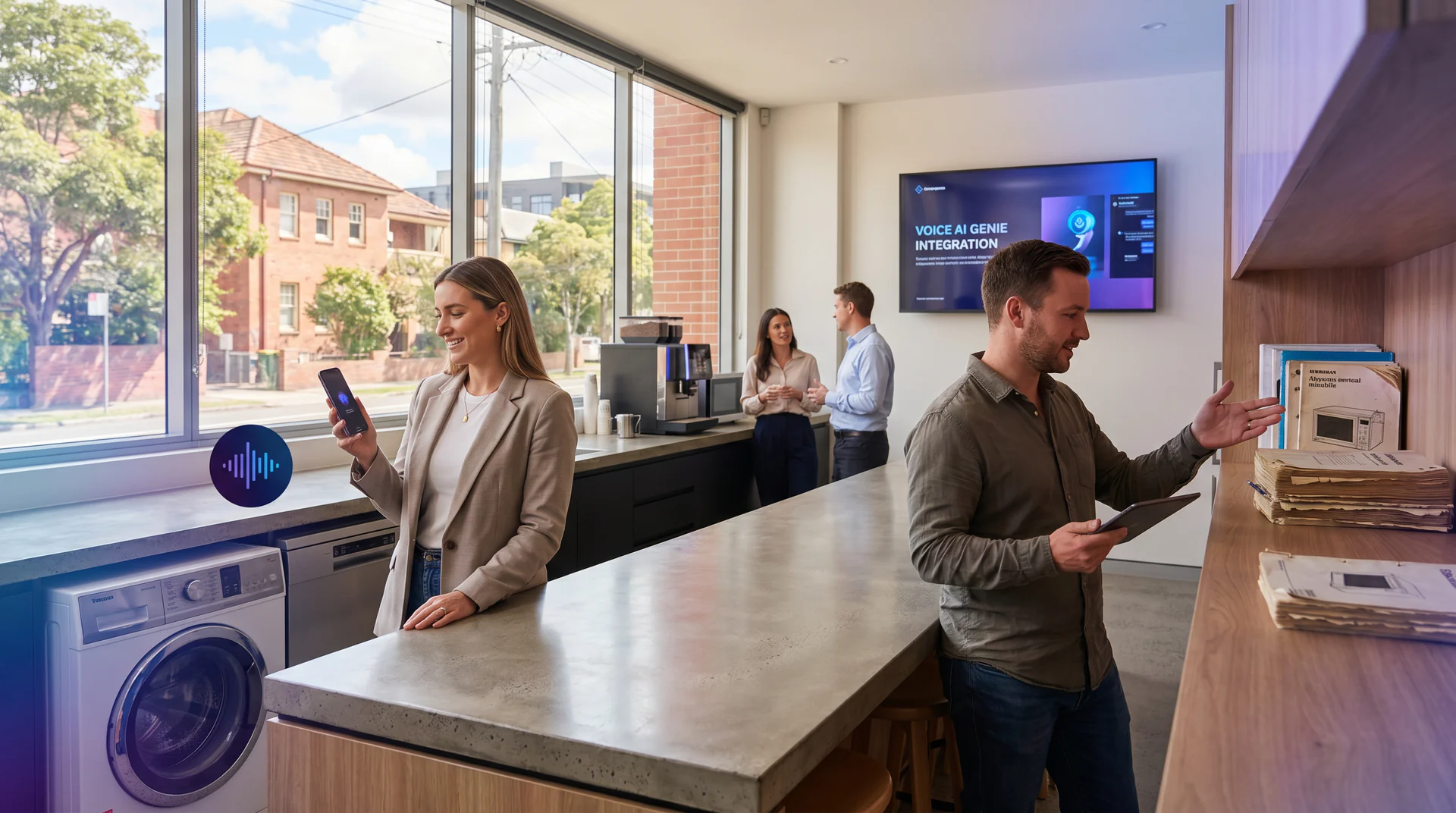
From 84 Pages to 4 Seconds
Here’s the before picture. You ship a dishwasher. The customer gets a 84-page manual, puts it in a drawer, and never opens it. Three months later the wash cycle shows E15 at 7pm. They call your support line. Your team is gone for the day. The customer is frustrated. You miss the call.
Here’s the after picture. There’s a QR code on the inside of the door. The customer scans it, asks “what does E15 mean and how do I fix it,” and gets the answer in 4 seconds. Same manual. Different doorway.
This guide walks you through exactly how to get from before to after. By the end, you’ll have a working voice AI genie built from your appliance manual, accessible via QR code, phone, or your website, ready to answer customer questions around the clock.
What You’ll Have at the End
A live voice genie trained on your appliance documentation. Customers scan a QR code (or visit a link) and ask their question out loud or in text. The genie answers using your manual as its knowledge base, and points them to the relevant page if they want to read more.
No support ticket required. No hold music. No missed calls.
Prerequisites
Before you start, have these ready:
- Your appliance manual in PDF format. If you only have a printed copy, scan it or find the digital version on your manufacturer site.
- A Help Genie account. The free plan covers 10 conversations per month. That’s enough to test and verify everything works before you scale.
- 5-10 minutes. Setup is three steps: upload your docs, customize your genie, go live.
That’s it. No developers. No coding. No long onboarding process.
Step 1: Upload Your Manual to the Knowledge Base
Go to your Help Genie dashboard and create a new genie. Name it something specific to the product, like “DW900 Support Genie” or “Series 5 Dishwasher Help.”
Click Add to Knowledge Base and upload your PDF manual. Help Genie reads the document and builds a searchable knowledge base from it. If you have multiple documents (installation guide, warranty terms, troubleshooting addendum), upload all of them at once.
Verifiable result: Once uploaded, you’ll see the document listed in your knowledge base with a status showing it’s been processed. You can run a quick test query like “what is error code E15” and confirm the genie pulls the right section.
Tip: If your manual has a lot of boilerplate legal language in the first 20 pages, that’s fine. The genie is smart enough to focus on the content that answers real questions. You don’t need to clean the PDF first.
Step 2: Customize the Genie’s Voice and Personality
This is where voice AI for appliances gets interesting. You’re not deploying a generic support tool. You’re deploying your brand’s voice.
Go to the Customize section of your genie. Set the name, the personality tone (helpful and direct works well for appliance support), and the opening greeting. Something like: “Hi, I’m here to help with your [Brand] dishwasher. What’s going on?”
Choose a voice from the available options. For appliance support, a calm and clear voice tends to build more trust than something overly enthusiastic.
Set a goal for this genie. For an appliance support genie, the goal is usually: answer the customer’s question, provide the page reference if they want to read more, and capture their contact details if the issue needs escalation.
Verifiable result: Preview the genie using the built-in test interface. Ask it a common question from your support inbox, for example “my dryer is making a loud noise” or “how do I run a self-clean cycle.” Confirm the answer is accurate and matches what’s in the manual.
Step 3: Set Up Lead Capture for Unresolved Issues
Not every question has a clean answer in the manual. Sometimes a customer has a faulty unit, a warranty issue, or a problem that needs a human. This is where lead capture earns its keep.
In the Lead Capture settings, turn on progressive profiling. Configure the genie to ask for the customer’s name, email, and model number if they indicate the issue isn’t resolved. You can also add a conditional field that triggers only when the customer says something like “it still isn’t working” or “I need a technician.”
This means your support team arrives on Monday morning with a list of customers who needed help over the weekend, along with the full conversation transcript and the model number. No missed calls. No lost context.
Verifiable result: Run a test conversation where you say the issue is unresolved. Confirm the genie asks for contact details and that the lead shows up in your dashboard.
Step 4: Generate Your QR Code and Deployment Links
Go to the Deploy section. Help Genie gives you several options: a website embed, a direct link, a phone number, and a QR code.
For the appliances before-after use case, the QR code is the key asset. Download it. This is what goes on the physical product, in the box insert, on the warranty card, or directly on the inside of the appliance door.
You can also copy the direct link and add it to your product page, email signature, post-purchase confirmation email, or anywhere customers might look for support.
If you want customers to be able to call and speak to the genie (great for older customers who won’t scan a QR code), assign a phone number from the dashboard. Help Genie supports local US, Canadian, UK, Australian, and NZ numbers.
Verifiable result: Scan the QR code with your phone. Confirm it opens the genie and that you can ask a question and get a correct answer.
Step 5: Test With Real Customer Questions
Before you print 10,000 QR codes, test the genie with real questions from your support history.
Pull the top 10-15 questions your team gets asked about this product. Ask each one to the genie. Check that:
- The answers are accurate
- The page references (if included) are correct
- The tone feels right for your brand
- The lead capture triggers correctly when the issue isn’t resolved
If any answer is wrong or incomplete, go back to the knowledge base and add a specific FAQ entry. You can add manual Q&A pairs directly in the knowledge base, which override or supplement what’s in the PDF.
Verifiable result: All 10-15 test questions get accurate, brand-appropriate answers. Lead capture works. The genie is ready to go live.
Common Gotchas
The genie gives a vague answer instead of a specific one. This usually means the manual’s formatting made a section hard to parse. Add a direct FAQ entry in the knowledge base with the question and exact answer. That entry will take priority.
Customers scan the QR code but don’t engage. Check the opening greeting. If it sounds like an automated system, people disengage. Make the greeting conversational and specific to the product.
The lead capture isn’t triggering. Double-check the conditional logic settings. Make sure the phrase that triggers the lead form (like “still not working”) is set up in the workflow settings, not just in the prompt.
The manual is 200 pages and covers 12 product variants. No problem. Upload it as-is. Just make sure the genie’s opening prompt asks the customer which model they have, so the answers stay relevant.
The Real Shift
The manual hasn’t changed. The information inside it is the same as it’s always been. What’s changed is how customers access it.
A voice AI genie built from your appliance documentation means that the 7pm E15 panic call becomes a 4-second self-serve answer. Your support team handles fewer repeat questions. Customers leave the interaction feeling helped instead of ignored.
That’s the appliances before-after in practice.
Ready to see it work with your own manual? Visit appliances industry hub to explore how voice AI fits into your product support flow, or go to send us your manual and we’ll send back a working genie this week.
Want to check the numbers first? The ROI calculator shows what a reduction in support call volume means for your bottom line.
Keep exploring
Further reading and useful tools
Is This Covered? How a Genie Answers Warranty Questions the Right Way, Every Time
Voice AI that reads your warranty terms verbatim and gives customers consistent, accurate answers on any channel, 24/7. No guessing. No over-promising.
GuideVoice AI for Appliance Businesses: The Complete Guide
A complete guide to voice AI for appliance retail, repair, and electronics businesses covering missed calls, setup, warranty handling, and measuring ROI.
GuideHow to Build a Settlement-Day Genie for Your Appliance Handover Pack
Turn 11 appliance manuals into one voice AI genie new homeowners actually use. Step-by-step guide for builders and appliance retailers.
ComparisonAI Support for Boat and Marine Dealers in NZ and Australia
How boat, outboard and marine dealers in NZ and Australia can answer weekend owner calls. Five support options compared on price, coverage and fit.
ComparisonAI Support for Caravan and RV Dealers in NZ and Australia
How caravan, motorhome and RV dealers in NZ and Australia can answer owner calls after hours. Five support options compared on cost, coverage and fit.
BlogWe answered a lot of calls with AI. Here's what surprised us.
Tim Boyle shares what actually happened when we put voice AI into production. The results were not what we expected.

Help Genie
The Help Genie Team
The Help Genie team builds voice AI genies that resolve everyday support on their own — across phone, chat, web, and email — in your voice, 24/7. We write about what we learn shipping it to real businesses.
Building voice AI for 11+ industries, from trades to hospitality.
- voice AI
- customer support
- lead capture
- multi-channel genies